A family reading log
Family reading becomes
family memories.
Kids and grown-ups put the books they read on one family shelf. It remembers who read to whom, and grandparents far away can visit too. Japanese and English books line up with their covers.
✓ Free, no banner ads✓ Only your family sees your records✓ On phones and computers
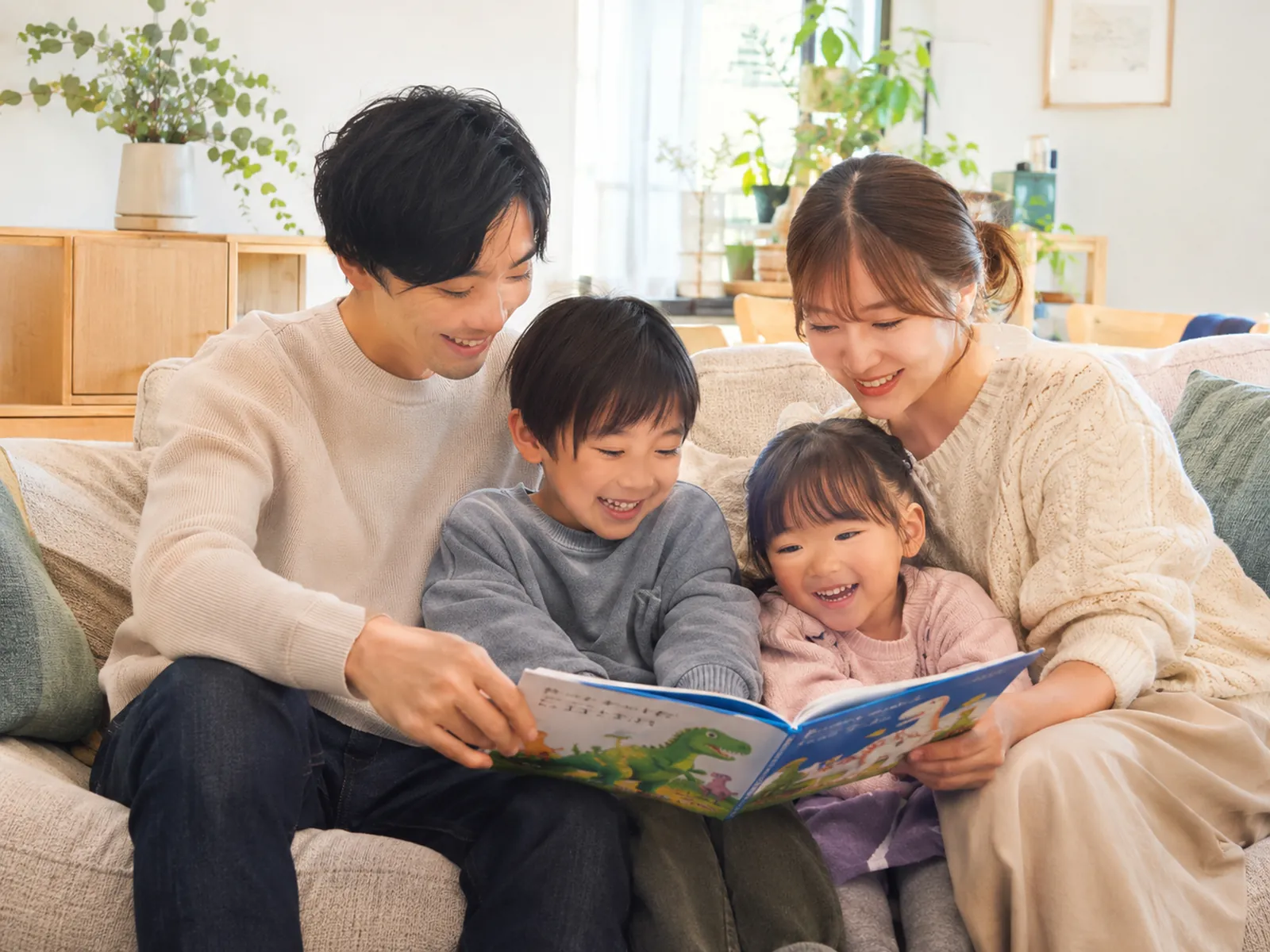
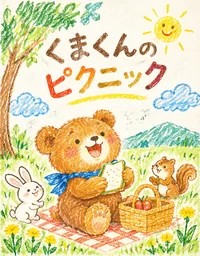

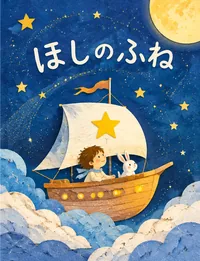
The books you read, and the time you spent, stay with your family
Who read to whom
Reading aloud or reading alone. “Dad read to Sora and Mio” appears on the family timeline, with a photo or a few words if you like.
Grandparents can visit
Invite them as “viewers” to see the shelf and timeline and leave comments. One account can move between each of their children's families.
A screen just for kids
Simple words and big buttons let kids record “I read it!” themselves. Connect a kid's tablet without a Google account.
Just scan the barcode
Scan the barcode on the back and the cover, title and author go straight onto the shelf. You can also search by title or type it in.
Covers and book details, all there
We search Rakuten Books, Japan's National Diet Library, Google Books and Open Library for covers and details — Japanese picture books and English books alike. No cover? Snap a photo.
Reading time and a year in review
Time read-aloud sessions with the stopwatch. Days you read partway count too, and you can look back on the year's books and time, with covers.
A reading log without competition
No rankings, badges, streaks or reading goals. No nagging notifications. It's an app for enjoying, as a family, a shelf that slowly fills with the books you've read.
- Free, no banner ads
- Only your family can see
- No nagging notifications
Your family shelf in 5 minutes
- 1Sign in with Google or emailNo new password needed. With email, just open the link we send you.
- 2Create your family shelfEnter your family name and the people who get a shelf (kids and grown-ups).
- 3Add booksScan the barcode or search by title.
- 4Invite your familyYour partner as “family”, grandparents as “viewers”.
Before you start
Does it cost anything?
It's free, with no banner ads. Book pages include referral links (ads) to Rakuten Books and Amazon.
Can I use it without a Google account?
Yes. Enter your email address and we'll send you a sign-in link. No password to create. You can also invite family who don't use Google, like grandparents.
Do kids need an account?
No. Only the one grown-up who creates the family needs an account. Grown-ups set up the kids' shelves; kids use them through the kid screen, or by connecting their tablet with a code (no Google account needed).
Can I use it like an app on a phone or tablet?
Yes. On iPhone or iPad, tap the Share button in Safari (or Chrome); on Android, open Chrome's “⋮” menu. Then choose “Add to Home Screen”, and Yondano! opens from its home screen icon just like an app. It works the same way on kids' tablets and phones, not only on grown-ups' devices. An app added to the home screen signs in separately from the browser, so for a child's device, add it to the home screen first, then open that app, choose “Connect as a child's device” and enter the code.
What can grandparents do?
As “viewers”, they can see the family shelf and timeline and comment on photos and notes. They can't add books or change records.
Can I add Japanese and English books?
Yes. Search by barcode (ISBN) or title. If a book isn't found, type it in and photograph the cover.
Where do covers and book details come from?
We search Rakuten Books, Japan's National Diet Library (NDL), Google Books and Open Library — mainly Rakuten and the NDL for Japanese books, and Google Books and Open Library for English books — until a cover is found, and fill in the title, author and publisher. Don't like a cover? Choose another one we found, or take a photo.
Who can see our records?
Only the family and viewers you invite. Nothing is made public.